Pay It Down
Step-by-step guide

How to use the Pay It Down app

Set up your mortgage, log your payments and read your numbers. Each step shows the screen you'll see and exactly what to enter.

00 · Before you start

Have your loan details handy

Make sure you have your loan figures ready before you begin. You can find them in your loan statements or your banking app, or by contacting your lender.

Every mortgage

  • Property address, suburb, state and postcode
  • The amount you borrowed (starting principal)
  • Your interest rate
  • Loan term in years, and the month and year it started
  • How often you pay: monthly, fortnightly or weekly

Already making payments? Also

  • Your current loan balance (current principal)
  • Your current offset account balance, if you have one
  • Total interest paid so far (optional)
  • Total extra repayments made so far (optional)
01 · Get started

Download, sign in and find your way around

1

Download the app and sign in with Apple

Download Pay It Down free from the App Store, then tap Sign in with Apple. There's no separate password to create.

Before you sign in you can choose whether to receive marketing emails. You can change this any time in the Account tab.

Tip: If you choose Apple's “Hide My Email”, we receive a private relay address instead of your real one.
Download on the App Store

Free · Available only in Australia

2

Get to know the Dashboard

After you sign in you land on the Dashboard. It shows how many mortgages you're tracking and three places to go:

My mortgagesAdd a mortgage, track payments, view loan progress and model scenarios.
Repayment calculatorCalculate and compare repayments on any loan amount, rate and term, monthly, fortnightly or weekly. Handy for forecasting repayments before you sign.
Account settingsYour email, marketing preference, notifications and account deletion.

The bar at the bottom of the screen switches between Dashboard, Mortgage, Calculator and Account.
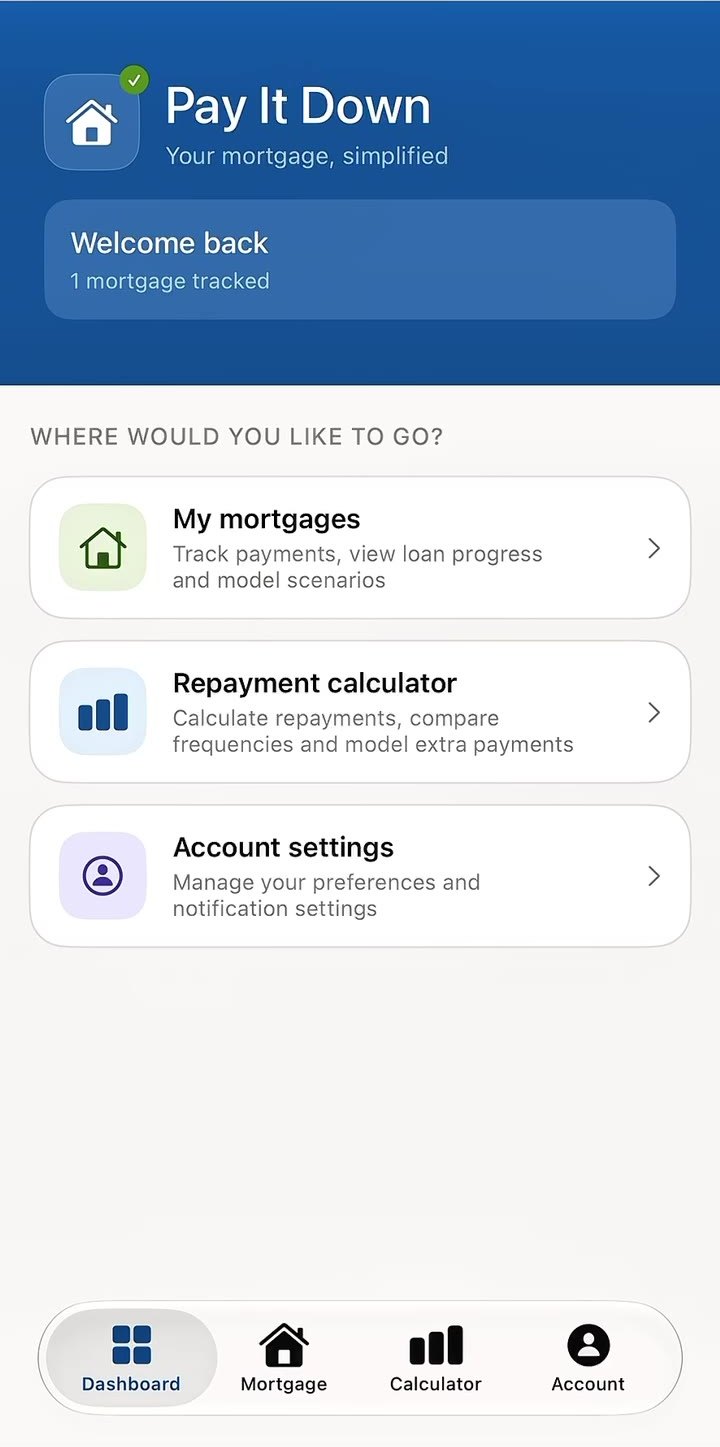
Pay It Down Dashboard showing My mortgages, Repayment calculator and Account settings
The Dashboard
02 · Add your mortgage

Set up your loan in four short screens

Open My mortgages and tap to add a mortgage. The bar at the top shows how far through you are. Tap Continue to move on, the back arrow to go back, or Cancel to stop.

3

Choose the type of mortgage

Pick the option that matches where your loan is up to, then tap Continue.

Brand new mortgageNo payments made yet. Tracking starts from day one.
Ongoing mortgageYou're already making payments. Pay It Down picks up mid-stream using your current balance.
Which one? If you've made even one repayment, choose Ongoing mortgage. You'll get a couple of extra fields so your numbers start from where you are today.
Add mortgage screen with Brand new mortgage and Ongoing mortgage options
Add mortgage
4

Enter your property details

Tell the app about the property. The address is used as your mortgage's name so you can tell loans apart.
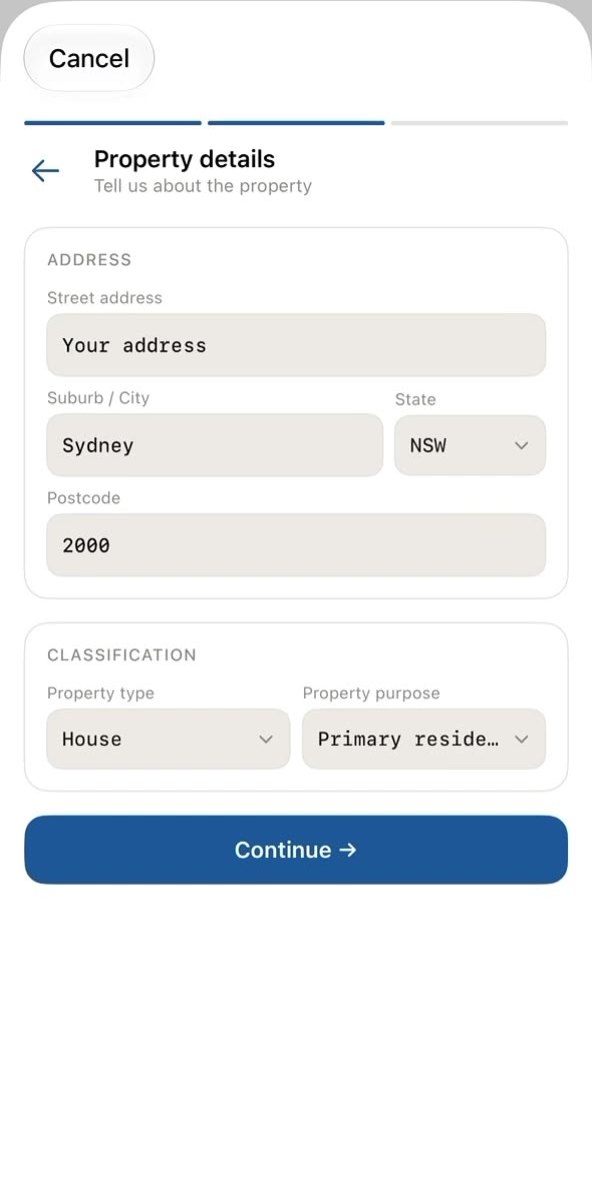
FieldExample
Street addressThe property's street address.12 Example St
Suburb / CityThe suburb or city.Sydney
StatePick from the list.NSW
PostcodeFour digits.2000
Property typeThe kind of property, such as a house or apartment.House
Property purposeHow the property is used, such as primary residence or investment.Primary residence
Property details screen filled in with Sydney, NSW, 2000, House and Primary residence
Property details, filled in
5

Enter your loan details

These numbers drive every calculation in the app, so be sure to enter your details accurately.
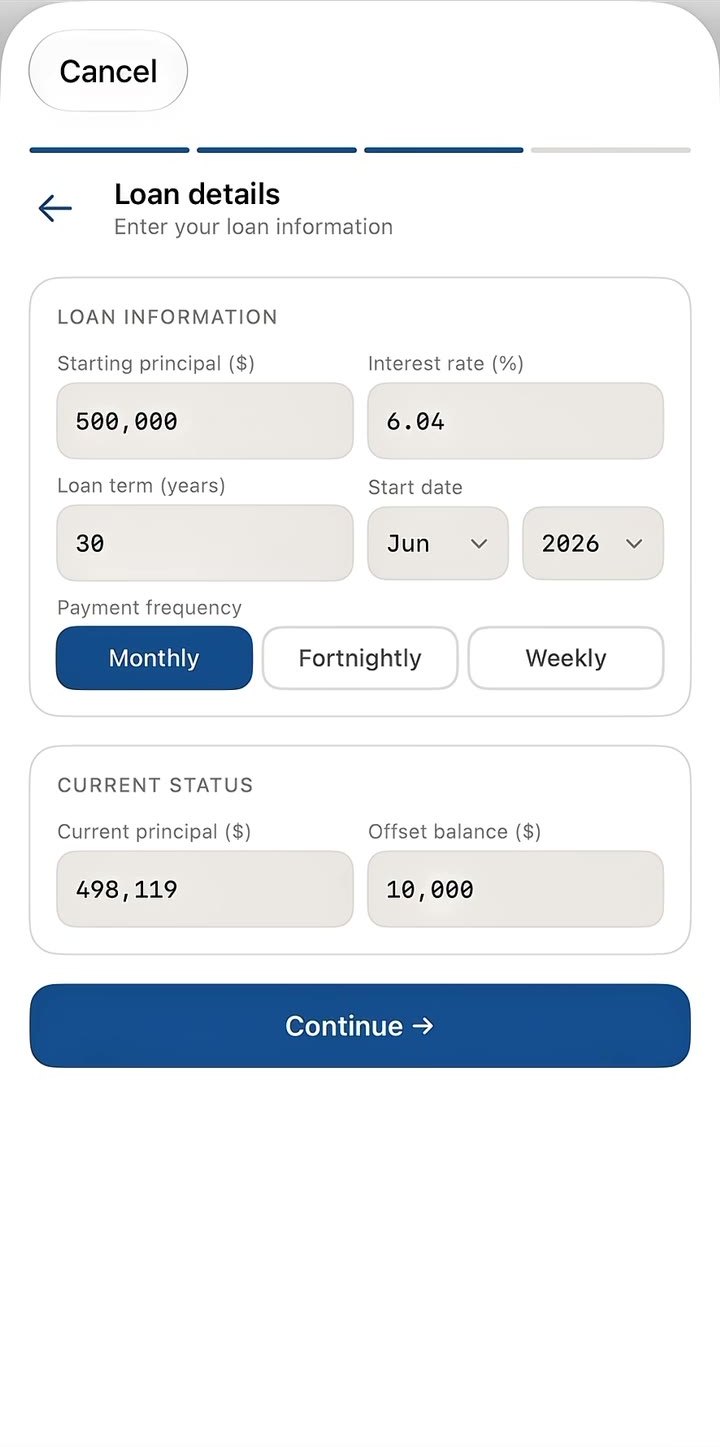
Loan informationExample
Starting principal ($)The amount you originally borrowed. Numbers only, no $ sign or commas needed.500,000
Interest rate (%)Your current interest rate as a percentage.6.04
Loan term (years)The full length of the loan.30
Start dateThe month and year the loan started (or will start).Jun 2026
Payment frequencyTap Monthly, Fortnightly or Weekly to match how you repay.Monthly
Current status · ongoing mortgages onlyExample
Current principal ($)What you still owe on your loan today.498,119
Offset balance ($)The money in your linked offset account today. Enter 0 if you don't have one.10,000
Brand new mortgage? You won't see the Current status section. Your balance starts at the starting principal.
Loan details for an ongoing mortgage with current principal 498,119 and offset balance 10,000
Loan details
6

Add optional details, then finish

Ongoing mortgages only. If you chose Brand new mortgage, you won't see this screen. Tapping Continue on Loan details adds your mortgage straight away.

This last screen adds your loan's history so your insights are more accurate. Everything here is optional. Tap Add mortgage when you're done.
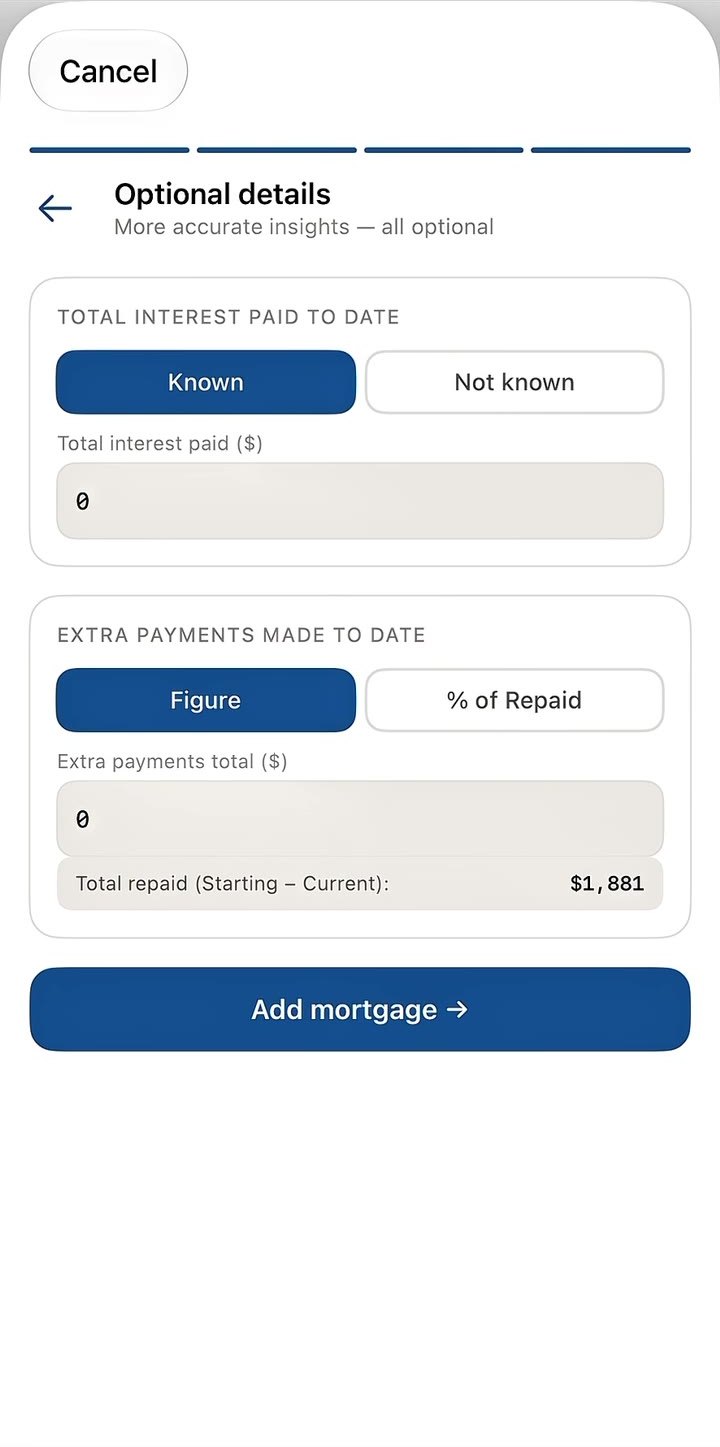
Optional detailsExample
Total interest paid to dateTap Known and enter the total interest you've paid so far, or tap Not known to skip.10,162
Extra payments made to dateTap Figure to enter a dollar total, or % of Repaid to enter it as a share of what you've repaid.0
Handy check: the app shows Total repaid (Starting − Current) underneath. In the example that's $500,000 − $498,119 = $1,881.
Optional details screen with Total interest paid to date and Extra payments made to date
Optional details
03 · Read your Summary

What your Summary page shows

Once your mortgage is added, it opens on the Summary tab. Use the tabs at the top to switch between Summary, Payments and Progress.

7

Check your balance and offset

The top of the Summary tab shows where your loan is up to. The letters match the boxes on the screen.

ACurrent balanceThe loan amount still to pay off, with a bar showing the % paid off.
BOffset accountThe balance of your offset, as you entered it. Underneath is your Effective balance: your current balance minus your offset, the amount interest is actually charged on. In the example, $498,119 − $10,000 = $488,119.

Offset accounts work differently from lender to lender. Your lender can confirm what applies to you.
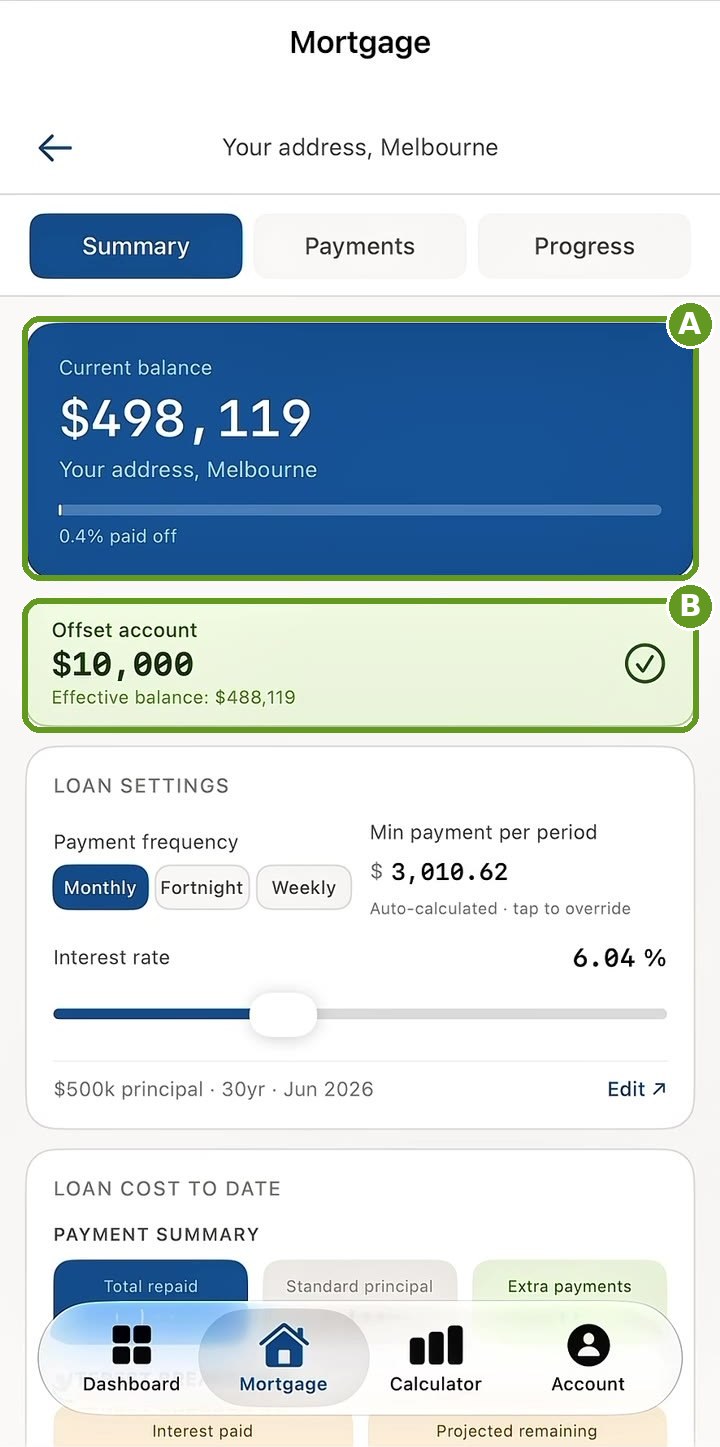
Summary tab with box A around the current balance of $498,119 and box B around the offset account of $10,000
Summary tab
8

Adjust your loan settings

Scroll down to Loan settings to change things as your loan changes.
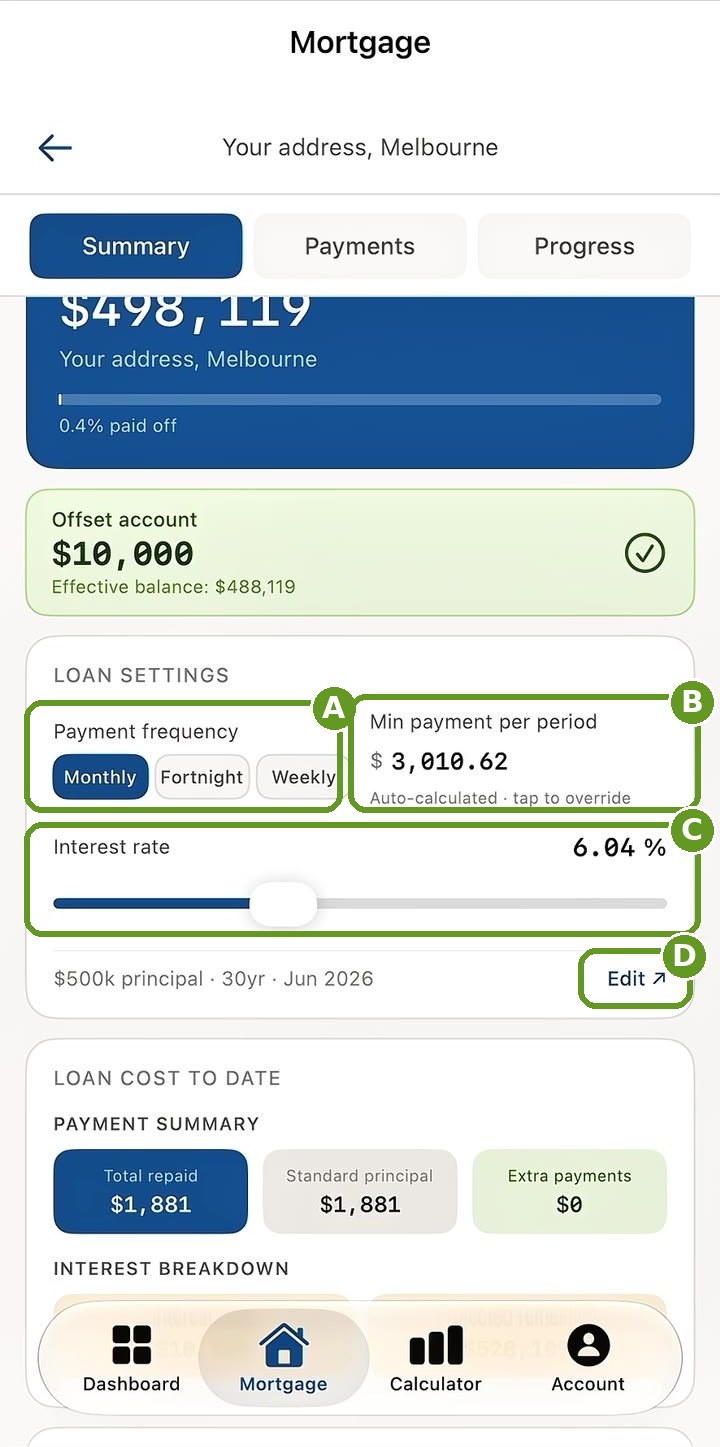
APayment frequencySwitch between Monthly, Fortnight and Weekly.
BMin payment per periodWorked out for you from your loan. Tap it to enter your actual repayment if it's different.
CInterest rateDrag the slider when your rate changes, for example after a rate rise.
DEditTap Edit next to the loan summary line to change your principal, term or start date.
Loan settings with boxes: A payment frequency, B min payment per period, C interest rate slider, D Edit
Loan settings
9

Understand your loan cost and insights

Further down the Summary tab, two sections break down where your money has gone and how long your loan has to go.

Loan cost to date

What your loan has cost you so far, and the interest still to come.
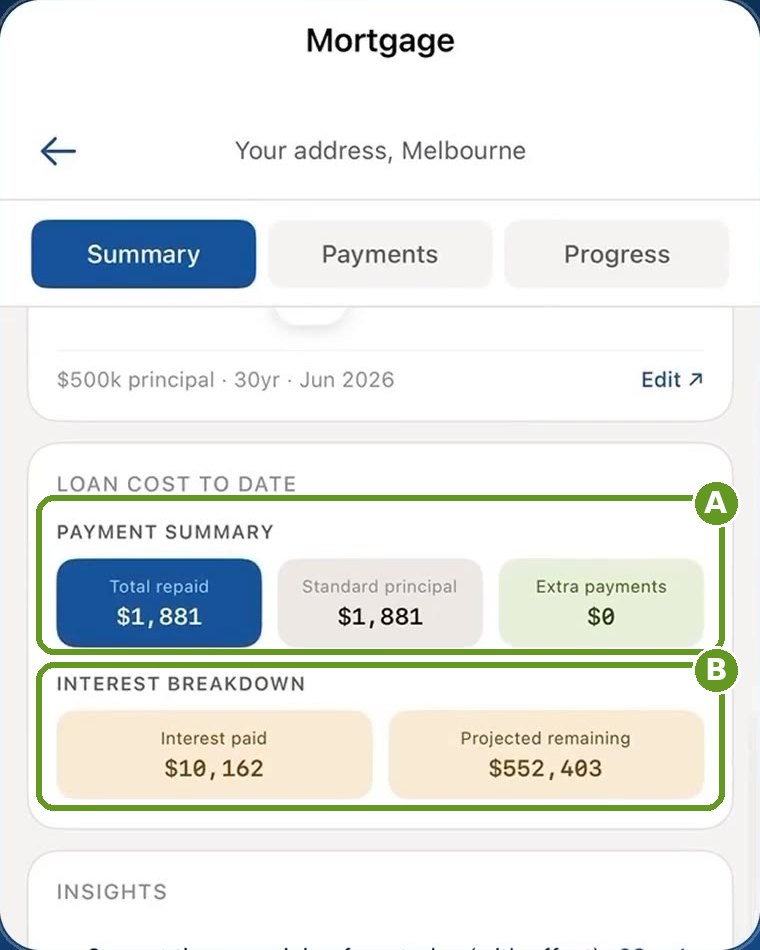
APayment summary
Total repaidAll the money you've paid towards your loan: standard repayments plus extras.
Standard principalThe part of your standard repayments that reduced the loan.
Extra paymentsAnything you've paid on top of your standard repayments.
BInterest breakdown
Interest paidTotal interest you've paid so far.
Projected remainingEstimated interest still to be charged until payoff, taking your offset into account.
Loan cost to date with box A around the payment summary and box B around the interest breakdown
Loan cost to date

Insights

Time-based estimates worth keeping in mind as you track your loan.
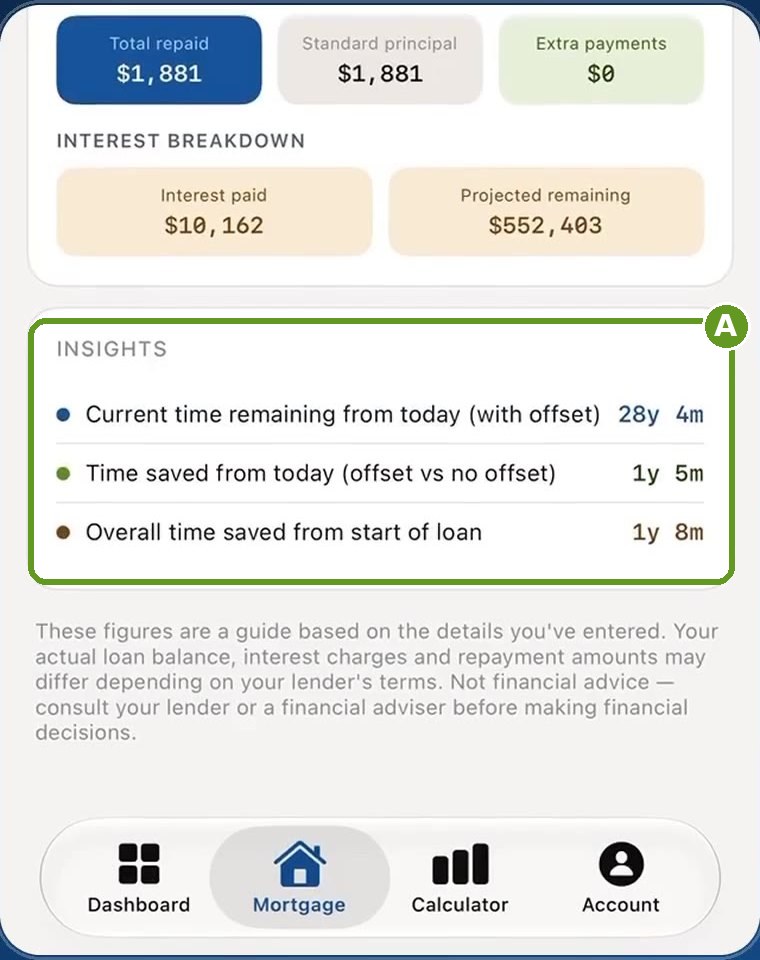
AInsights
Current time remainingHow long until payoff from today, with your offset.
Time saved from todayHow much sooner you could finish with your offset compared with no offset.
Overall time savedTime saved from the start of your loan.
Insights with box A around current time remaining, time saved from today and overall time saved
Insights
04 · Log a payment

Log each month's payment in under a minute

Logging payments keeps your balance, interest and insights up to date. You log one entry per month, even if you pay fortnightly or weekly. Turn on reminders and the app will nudge you when it's time.

10

Open Payments and fill in the month

Open your mortgage, tap the Payments tab, then pick the month and year at the top of Log payment and fill in the four boxes:
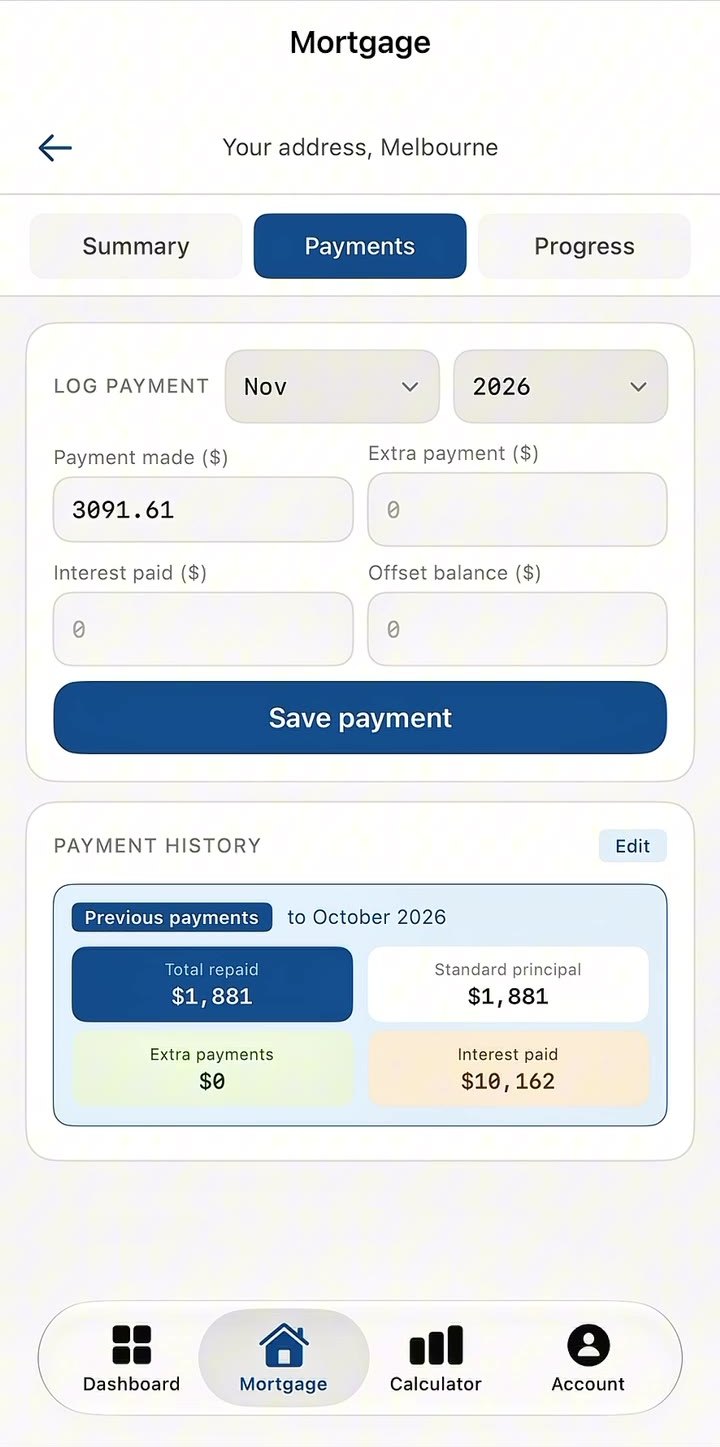
Log paymentExample
Payment made ($)The total you paid this month. If you pay fortnightly, add the payments together.2,852
Interest paid ($)Total interest charged for the month.2,580
Extra payment ($)The total of all extra repayments you made across the month, on top of your usual repayments.200
Offset balance ($)Your offset balance at the end of the month. Enter 0 if you don't have one.5,000
Fortnightly example: two payments of $1,426 in the month means you enter 2 × $1,426 = $2,852 as the payment made. The same goes for extra repayments: add up every extra payment made in the month and enter the total.
Payments tab with Log payment for November 2026 and fields for payment made, extra payment, interest paid and offset balance
Log payment
11

Save it and check your history

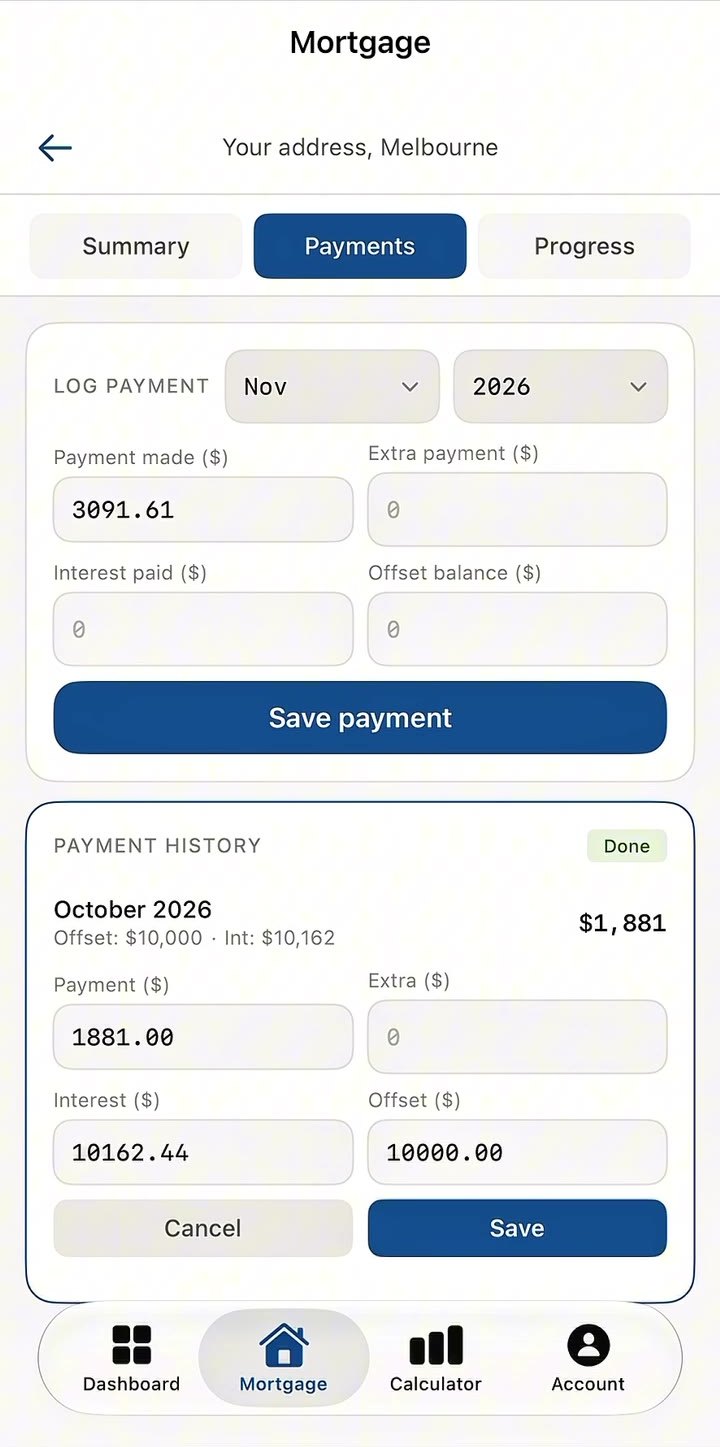
Tap Save payment. The entry appears in Payment history with the amount, any extra, your offset and the interest for that month.

Switch back to the Summary tab and your balance, loan cost and insights update straight away.
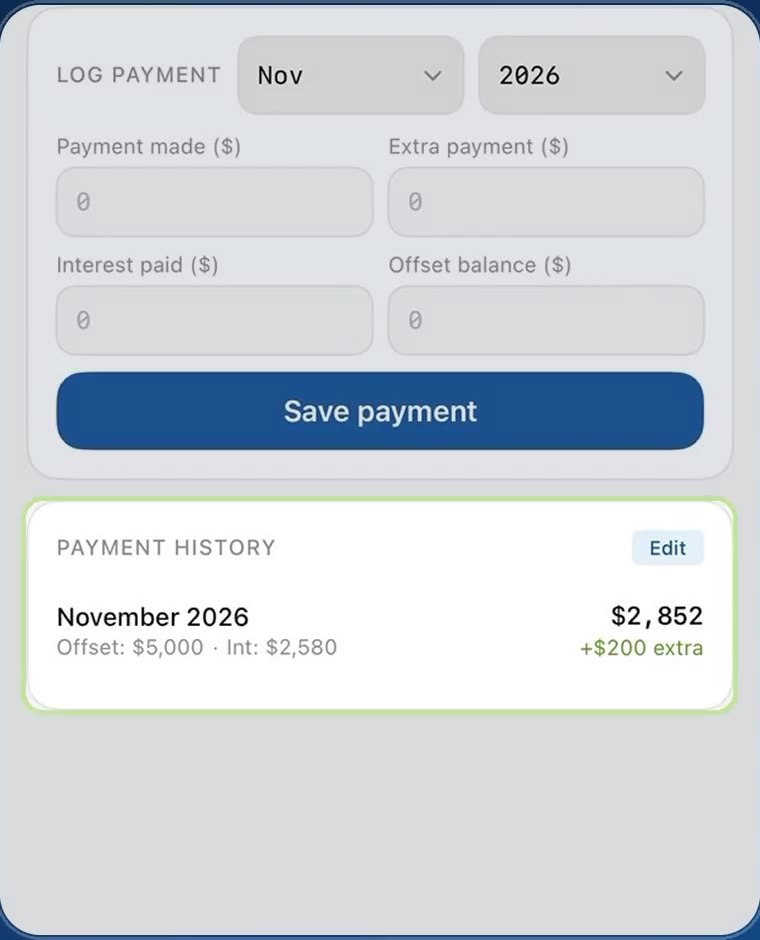
Ongoing mortgage? Your history starts with a Previous payments card summarising everything before you started tracking, built from the details you entered at setup.
Payment history showing a saved November 2026 payment of $2,852 with $200 extra
Saved to Payment history
12

Fix a payment you've already logged

Made a typo? In Payment history, tap Edit, then tap the month to change it.

  • Update the Payment, Extra, Interest or Offset amounts.
  • Tap Save to keep your changes, or Cancel to leave it as it was.
  • Tap Done to finish editing.
Editing an October 2026 entry in Payment history with Cancel and Save buttons
Editing a payment
05 · Progress tab

Explore “what if” scenarios

The Progress tab is where you model your mortgage. It shows two paths side by side: where your loan is headed with no changes, and where it could go if you add extra repayments or grow your offset.

13

Model your progress

Open your mortgage and tap the Progress tab. Move the sliders and everything on the tab updates as you go.

The four stat tiles

At the top of the tab, four numbers sum up your projection at a glance.

Interest savedThe difference between what your loan would cost with no extras or offset, and what it costs under your current projection. It's what your offset and extra repayments could save you over the life of the loan.
Time saved (from today)How many years and months your projection cuts off compared with the baseline: no offset, no extras, just your minimum repayment.
Projected payoffThe calendar month your loan would be fully paid off under your current projection, counting from your loan start date.
Daily interest (projected)How much interest is charged on your effective balance each day: your current balance minus your projected offset. A handy reminder of what each day costs.

The chart

Below the tiles, the chart plots two balance lines year by year, from today until payoff.

BaselineYour balance with no offset and no extra repayments: just your minimum payment applied each month.
ProjectionYour balance with the offset and extras you've dialled in.
Reading the chart: as the two lines move apart, you can see your offset and extra repayments working. The wider the gap, the more you could save.

The projection inputs

Use the sliders to try different scenarios.

SliderWhat it models
Extra monthly repaymentAny amount you add on top of your minimum repayment each month. Even a small extra amount compounds over time, and the chart shows the effect straight away.
Offset balanceThe amount sitting in your offset account in this scenario. You can try a different figure from what you actually have to explore “what if I saved more?”
Offset monthly growthHow much you expect your offset to grow each month. If you save into your offset regularly, this models that growth rather than assuming a fixed balance.
Change any slider and the chart, the stat tiles and the projected payoff date all update together.
General information only, not financial advice. Pay It Down provides estimates based on what you enter. Example figures on this page are taken from the app's demo loan ($500,000 at 6.04% over 30 years) and are for illustration only. Your lender's figures may differ. See our Terms & Conditions for how calculations work.

Still need help?

Check the Support & FAQ page, or send us a message and we'll get back to you as soon as we can.

Support & FAQ Contact Support